SHOUTcast Statistics
Knowledgebase
Stream to your Shoutcast server using Winamp
|
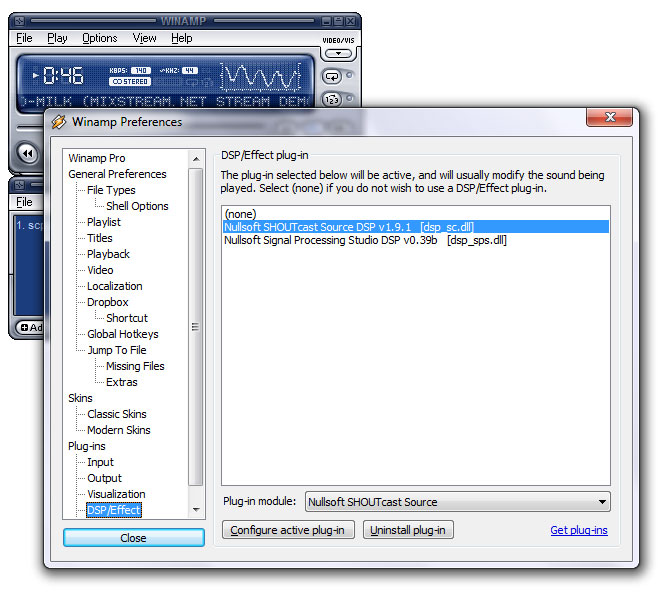
NOTICE: This tutorial doesn't refer to the most recent version of the plugin. We will be adding a new tutorial for the latest version in the coming days. If you do have the latest, then this will still work as a rough guide. One main difference is that in the new on you will need to delete the User ID and Stream ID settings and then tick the box for legacy servers. It is very simple to stream your audio to your server with Winamp and the Shoutcast DSP plugin installed. Setting up the Shoutcast DSP Plugin1) Start Winamp and go to: Options >> Preferences You will see the menu below:
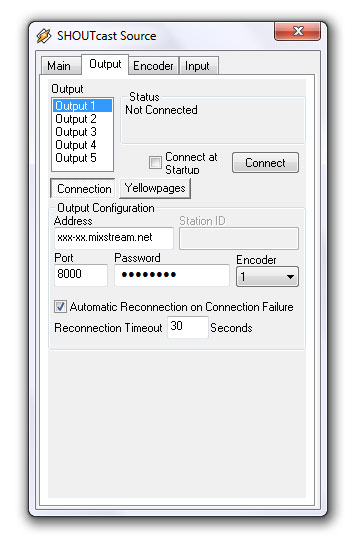
On the left hand menu, click on DSP/Effect and in the main window, click on 'Nullsoft SHOUTcast Source DSP'" and another window will also appear entitled 'SHOUTcast source' (as shown below). You can now close the preferences window and the SHOUTcast Source window will remain open. 2) Configure the plugin. a) First of all, click on the Output tab at the top and make sure that 'Connection' is selected (under the output list). This is where you put in the info that you were sent when your SHOUTcast account was activated. You will need to enter the Address, Port and Password - if you are unsure, please open a support ticket or log in to the control panel (you should have recieved an email when you signed up to the service with your stream details). Select Encoder 1 if not already selected (or whichever encoder is available if you are already using 1).
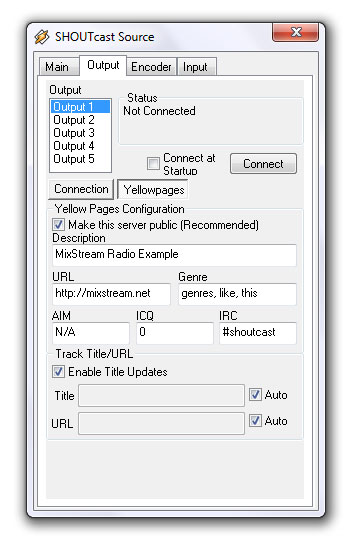
b) Click on the Yellowpages button. This is where you enter general information about your stream. Note: You must enter a Description and Genre to appear on the SHOUTcast directory - don't keep it as the default name or you won't be listed.
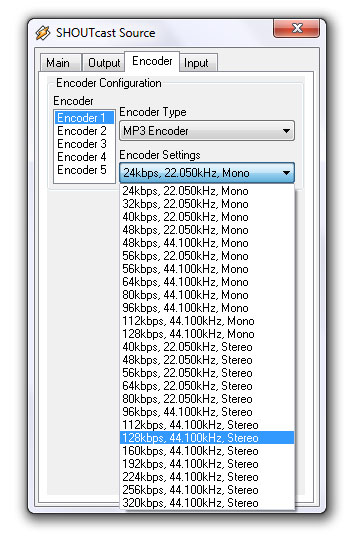
The Description and URL can be set in our SHOUTcast control panel to override these settings if you have multiple DJs and wish to keep the settings constant. c) Click the encoder tab. This is where you set the bitrate of your stream. Make sure that you select the same encoder as you did in the Output > Connection settings (usually Encoder 1 or whichever one you selected in step 2a)
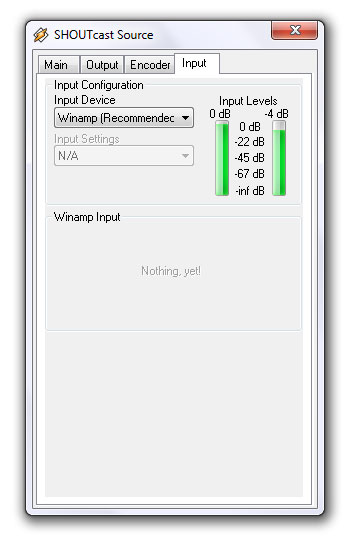
IMPORTANT: Be careful not to stream at a higher bitrate than your account allows, as your SHOUTcast server will be automatically disabled! If this happens then you can log into restart your server, if you lock your server more than 3 times it will be suspended for 1 day or until you contact us. If your server gets locked off then just open a support ticket and we will be happy to reactivate it. With the latest version of Winamp, you can broadcast in either MP3 format or AAC+. The AAC+ format is far superior as far as sound quality goes, however only more recent audio players are able to support the relatively new format and it doesn't work with Flash players. To reach a wider audience, you may be best to stream in MP3. For lower bitrates (lower than 96k), it is often better to select a mono setting rather than stereo - this will give better sound quality. A sample rate of 44.100kHz is also often better. The best ways is to experiment to see what your listeners prefer - different settings will be better depending on the content you stream. d) Click the Input tab. This is where you select the source of your audio. If you are streaming music straight from Winamp, then select Winamp for the Input Device like this:
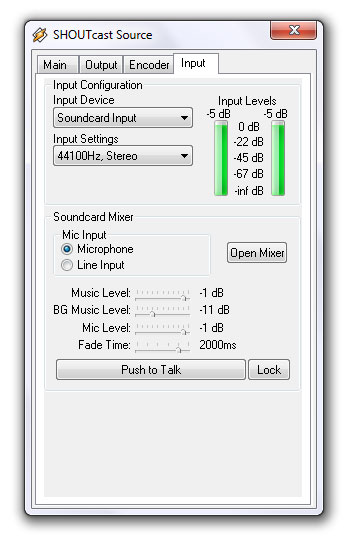
However, if you are DJing live with external equipment (turntables / CD player / mixer etc) or hosting a talk show, then you will have to select the Line Input:
e) You are now fully set up and ready to stream your audio across the net. 3) Connect to your server
To connect to your server, click the Output tab again and click Connect - you will see a counter start inside the Status box - this means that you have connected to your SHOUTcast server successfully. A few extra notes for people who have selected Line In as their Input Device You may have to configure the mixer on your PC - to do this, go to the Input tab and click on Open Mixer. Two windows will appear (Volume Control and Recording Control). Close Volume control, as this is not needed. Ensure that the Line In box is ticked and that the volume is at a suitable level - on my system in particular the level control is very sensitive - the best way to test this is to use the in built Input Level meter in the SHOUTcast Source plugin (Input tab). You can also select the Stereo Mix box (some PCs may not have a Line In selection), however your listeners will also hear any sounds made by your PC such as web pages or other applications like MSN. Best to disable all sounds in this case. |
Installing Edcast
1) Start the installation
Double click on the exe file to open it, click on I Agree (after reading the agreement).
2) To use MP3 and AAC+
During the installation process, Edcast will ask you to 'Select components to install'. If you plan on using MP3 or AAC then it is important to select the options (they are not selected by default but the chances are that you will want at least MP3).

3) Click Next and Install
Once the installation has completed, you will see an additional message box like this:

Note: This message is slightly wrong, you don't put the DLLs into your Winamp directory, as you are not using the Winamp plugin version.
This will take you to a website where you can download the relevant encoders.
a) For MP3 encoders:
Click on the LAME Libraries link and download the latest version of 'lame_enc.dll' (usually the top listing on the page).
Extract the contents of the zip folder and copy lame_enc.dll into the folder in which you installed Edcast (Usually something like C:\Program Files\edcast or C:\Program Files (x86)\edcast).
b) For AAC+ encoders:
Click on the link to AAC Encoders & Tools and look for libFAAC dll (the second one down at the time of writing).
Extract the contents of the zip folder and copy libfaac.dll into the folder in which you installed Edcast (Usually something like C:\Program Files\edcast or C:\Program Files (x86)\edcast).
Once you've copied the DLL files accross, you can delete the original downloads.
4) You may now be asked to install Visual Studio.
This is normally required so click Yes to install it (if it's already installed then it shouldn't change anything but if you know it is installed then you can click No).
Configuring Edcast
1) Start Edcast
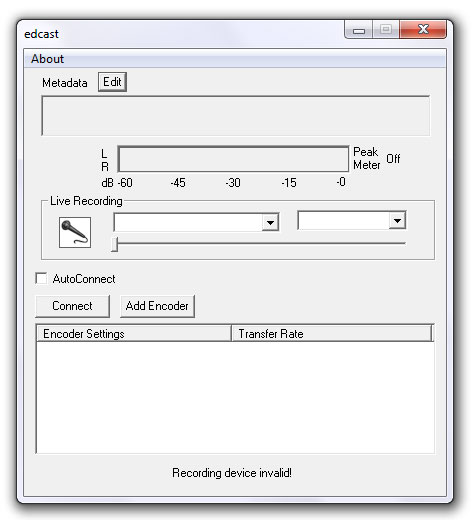
There will be an icon on your desktop if you left the option selcted, double click it and you will see something like this:
2) Start configuring your stream
Click on Add Encoder and a line will appear unside the Encoder Settings box (it will say something like 'Vorbis: Quality 0/Stereo/44100'). Double click on the new line and a Configuration box will appear.
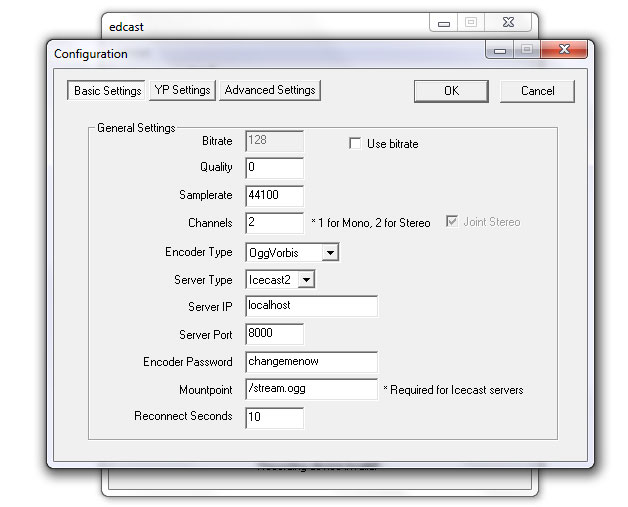
a) Enter your server details into the boxes provided and select the Encoder settings you desire.
Note: If using Shoutcast, the Mountpoint doesn't matter, you can just leave that as it is. Also, please ensure that you select the correct Server Type.
2) Click on YP Settings and enter your stream details.
Note: You must enter a Description and Genre to appear on the SHOUTcast directory - don't keep it as the default name or you won't be listed. As far as I know, Stream Name isn't used for Shoutcast.
3) If you would like to save a copy of your stream
Click on Advanced Settings and it will give you an option to do so.
Was this answer helpful?
